Modern teams exchange hundreds of files every week, including documents, spreadsheets, presentations, images and project assets. Without a proper system, file sharing becomes slow, confusing and error-prone. In this guide, you’ll learn how teams share files efficiently and the best practices used by productive organizations.
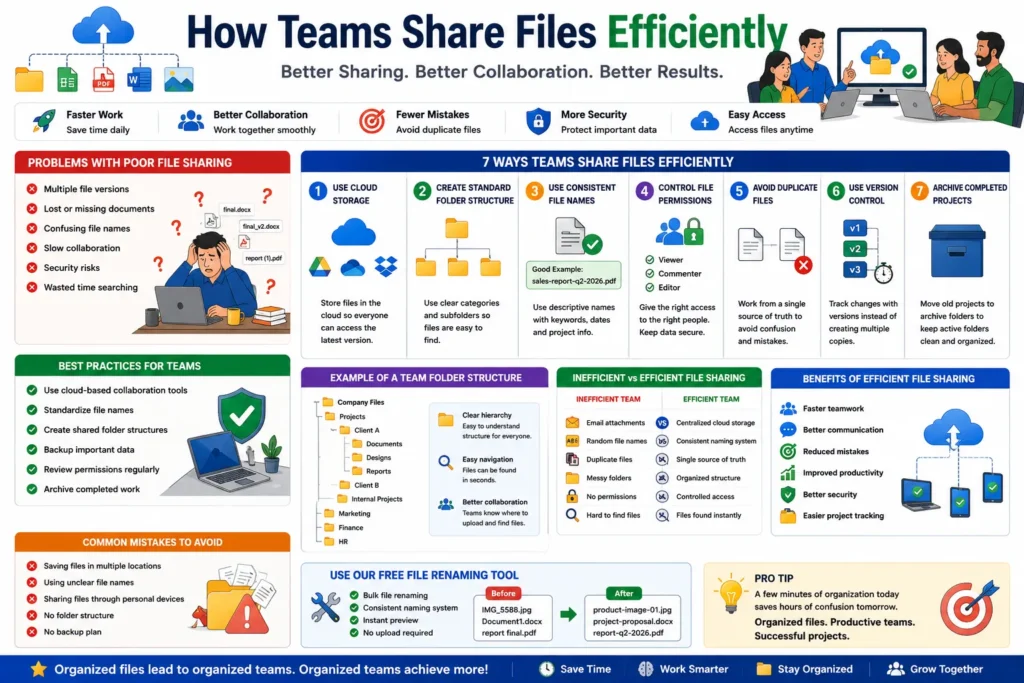
Quick Answer
Teams share files efficiently by using cloud storage, clear folder structures, consistent file naming conventions, access controls and collaboration tools.
Why Efficient File Sharing Matters
Every business depends on fast access to information.
Efficient file sharing helps teams:
- ✔ Work faster
- ✔ Reduce confusion
- ✔ Improve collaboration
- ✔ Prevent duplicate files
- ✔ Increase productivity
- ✔ Improve project management
Problems Caused by Poor File Sharing
- ❌ Multiple file versions
- ❌ Lost documents
- ❌ Confusing file names
- ❌ Slow collaboration
- ❌ Security risks
- ❌ Wasted time searching
👉 Small file-sharing mistakes can create major productivity problems.
How Teams Share Files Efficiently
1. Use Cloud Storage Platforms
Modern teams use cloud-based systems instead of emailing files repeatedly.
Popular options include:
- ✔ Google Drive
- ✔ Microsoft OneDrive
- ✔ Dropbox
- ✔ SharePoint
👉 Everyone accesses the latest version instantly.
2. Create a Standard Folder Structure
Organized folders make file sharing much easier.
Company Files/
│
├── Projects/
├── Marketing/
├── Finance/
├── HR/
└── Clients/
👉 Team members know exactly where files belong.
3. Use Consistent File Names
Random names create confusion.
Bad Example:
final-report.pdf
final-report-new.pdf
report-last-final.pdf
Better Example:
sales-report-q2-2026.pdf
client-contract-may-2026.pdf
4. Control File Permissions
Not everyone should have access to every file.
Permission levels help:
- ✔ Protect sensitive data
- ✔ Reduce accidental edits
- ✔ Improve security
5. Avoid Duplicate Files
Duplicate documents create confusion and mistakes.
Teams should work from one shared source whenever possible.
6. Use Version Control
Instead of creating multiple copies, use version tracking.
Example:
project-plan-v1
project-plan-v2
project-plan-v3
👉 Easier to track changes.
7. Archive Completed Projects
Old files should move to archive folders.
Archive/
│
├── 2024/
├── 2025/
└── Completed Projects/
👉 Keeps active folders clean.
Efficient vs Inefficient File Sharing
| Inefficient Team | Efficient Team |
|---|---|
| Email attachments everywhere | Centralized cloud storage |
| Random file names | Consistent naming |
| Duplicate files | Single source of truth |
| Messy folders | Organized structure |
| No permissions | Controlled access |
Best Practices for Team File Sharing
- ✔ Use cloud-based collaboration tools
- ✔ Standardize file names
- ✔ Create shared folder structures
- ✔ Backup important data
- ✔ Review permissions regularly
- ✔ Archive completed work
Example of a Team File Structure
Projects/
│
├── Client A/
│   ├── Documents/
│   ├── Designs/
│   └── Reports/
│
├── Client B/
│
└── Internal Projects/
Benefits of Efficient File Sharing
- ✔ Faster teamwork
- ✔ Better communication
- ✔ Reduced mistakes
- ✔ Improved productivity
- ✔ Better security
- ✔ Easier project tracking
👉 Efficient systems save hours every week.
Pro Tips Used by High-Performing Teams
- ✔ Use one central storage platform
- ✔ Rename files immediately
- ✔ Organize folders consistently
- ✔ Use access controls
- ✔ Clean up old files monthly
Common Team File Sharing Mistakes
- ❌ Saving files in multiple locations
- ❌ Using unclear file names
- ❌ Sharing files through personal devices
- ❌ No folder structure
- ❌ No backup plan
Use Our Free File Renaming Tool
If your team wants more organized file management, use our free tool:
- ✔ Bulk file renaming
- ✔ Consistent naming systems
- ✔ Instant preview
- ✔ No upload required
FAQ
Q1: What is the best way for teams to share files?
Using centralized cloud storage with organized folders.
Q2: Why do teams create duplicate files?
Because they lack version control and proper sharing systems.
Q3: Should teams use cloud storage?
Yes, cloud storage improves collaboration and accessibility.
Q4: How can teams avoid file confusion?
By using consistent naming conventions and folder structures.
Conclusion
Teams share files efficiently when they use organized folder structures, cloud storage, proper naming systems and controlled access. These habits improve collaboration, reduce mistakes and significantly boost productivity.