Agar aapke system me bahut saari files hain aur aap unhe ek-ek karke rename kar rahe ho, toh aap time waste kar rahe ho. Good news ye hai ki rename multiple files windows ka process bahut easy hai — bas aapko sahi method pata hona chahiye.
Is guide me main aapko simple aur practical tarike bataunga jisse aap seconds me hundreds of files rename kar sakte ho — bina kisi confusion ke.—
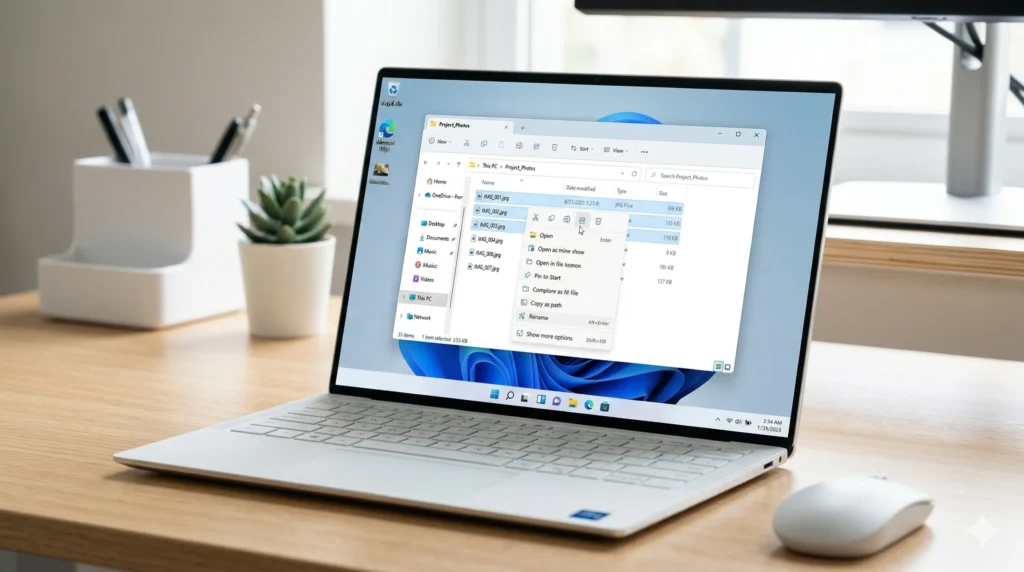
📌 What is Rename Multiple Files in Windows?
Rename multiple files ka matlab hota hai ek hi time par kai files ke naam change karna — bina manually har file ko edit kiye.
Windows 10 aur 11 me built-in features hote hain jo aapko batch renaming allow karte hain. Iska use karke aap files ko numbering, naming pattern ya structure ke saath organize kar sakte ho.—
⚡ Why You Need This
Real life me yeh feature bahut useful hota hai, especially agar aap:
- Photos organize kar rahe ho (e.g., IMG001 → Trip001)
- Documents ko sequence me rakhna chahte ho
- Downloads folder clean karna chahte ho
- YouTube ya blog ke liye files manage kar rahe ho
Agar aap ek cybersecurity student ho ya digital work karte ho, toh proper file naming productivity ko boost karta hai.—
🛠 Step-by-Step Guide: Rename Multiple Files in Windows
Method 1: Using File Explorer (Basic & Fast)
Yeh sabse simple method hai — beginners ke liye best.
- Folder open karo jahan files hain
- Sab files select karo (Ctrl + A)
- Right-click karo aur Rename select karo
- Ek name type karo (e.g., File)
- Enter press karo
Windows automatically files ko rename karega jaise: File (1), File (2), File (3)…—
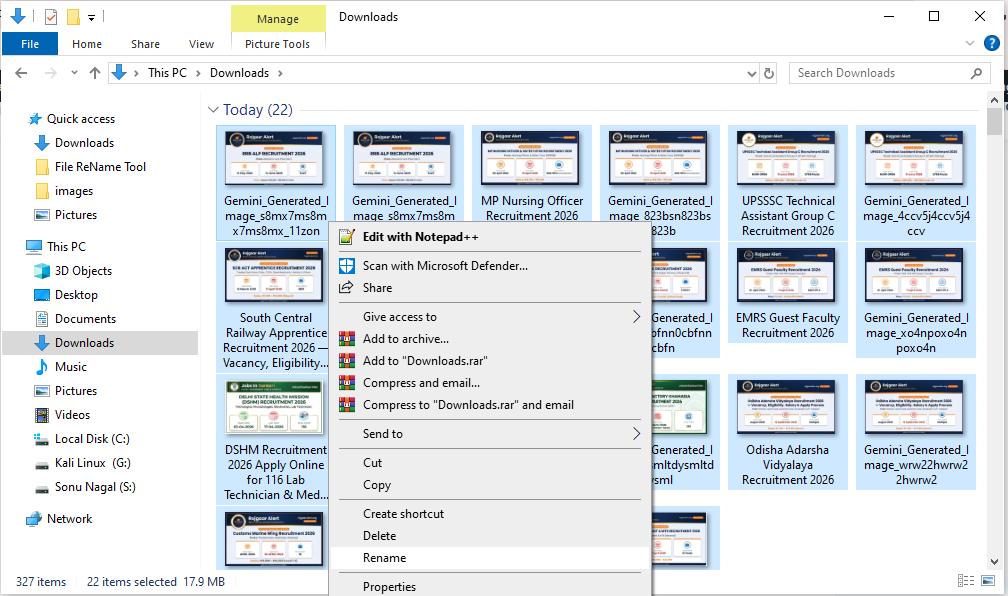
Method 2: Using Keyboard Shortcut
Agar speed chahiye toh yeh method use karo:
- Files select karo (Ctrl + Click ya Ctrl + A)
- Keyboard par F2 press karo
- Naya naam type karo
- Enter press karo
Yeh method same result deta hai, bas faster hai.—
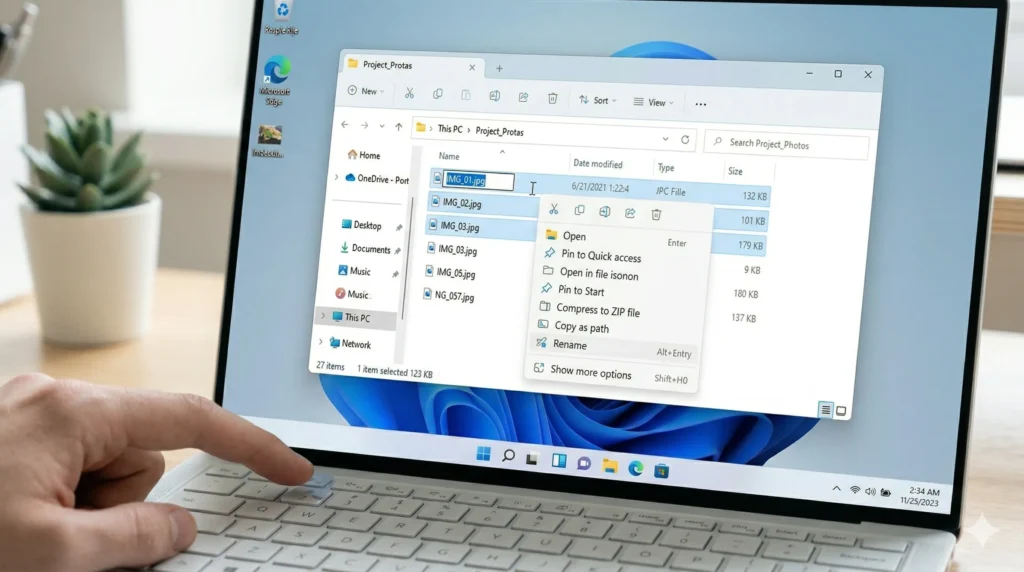
Method 3: Using PowerShell (Advanced Users)
Agar aapko control chahiye naming pattern par, toh PowerShell best hai.
- Folder open karo
- Address bar me “powershell” type karo aur Enter press karo
- Command use karo:
Example:
rename-item *.jpg -newname {“image_$($_.BaseName).jpg”}
Yeh sabhi JPG files ko rename karega with prefix “image_”—
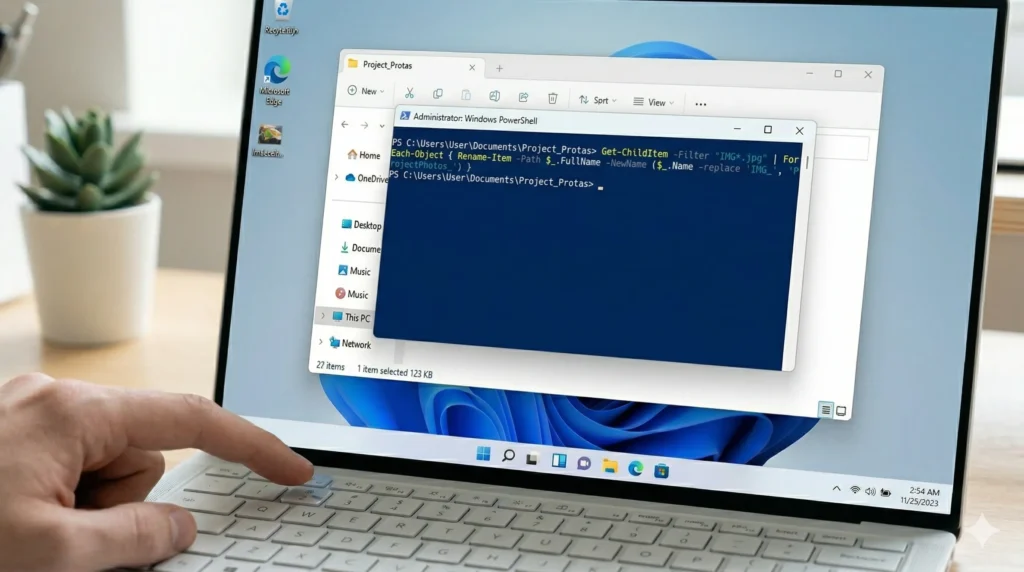
Method 4: Using Third-Party Tools
Agar aapko advanced features chahiye jaise replace text, remove characters, ya custom patterns — toh tools use karna better hai.
But dhyaan rahe, har tool safe nahi hota — isliye trusted tools hi use karo.—
💡 Pro Tips (Must Know)
- Rename karne se pehle files ka preview check karo
- Always backup important files before bulk rename
- Short aur clear names use karo (SEO aur organization dono ke liye)
- Spaces ki jagah underscore (_) ya dash (-) use karo
- Consistent naming pattern follow karo
—
❌ Common Mistakes to Avoid
- Sab files ko same naam dena bina numbering ke
- Important files bina backup ke rename karna
- Extensions (.jpg, .pdf) galti se change kar dena
- Random naming — baad me files dhundhna mushkil ho jata hai
—
🔒 Safety / Important Notes
Bulk renaming powerful hai, lekin risky bhi ho sakta hai agar aap careless ho.
- File extension kabhi change na karein (jab tak sure na ho)
- System files ko rename na karein
- Rename karne ke baad files open karke check karein
—
🚀 Use Our Free Tool
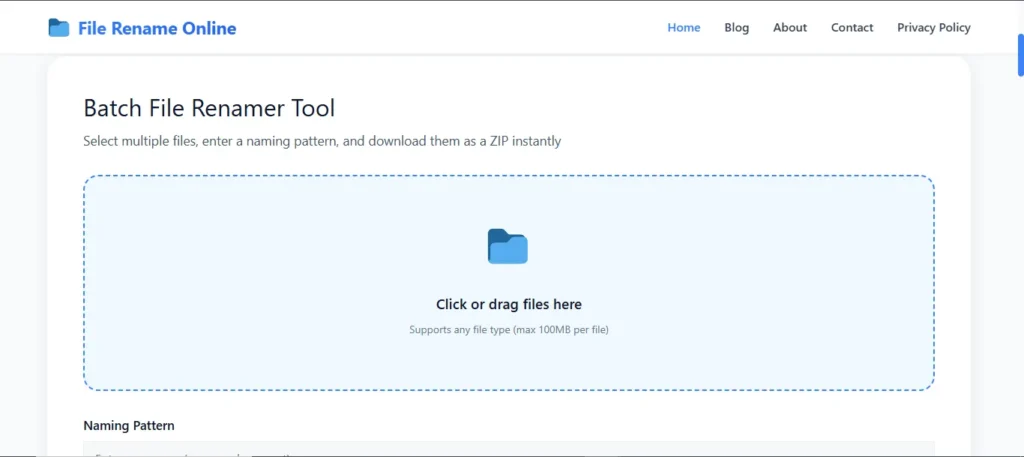
Agar aapko aur advanced control chahiye — jaise custom naming, remove words, ya format change — toh aap hamara free online tool use kar sakte ho.
✔ Fast processing
✔ Secure (no file upload required)
✔ Beginner-friendly interface
Yeh tool especially useful hai jab aapko large number of files manage karni ho bina technical knowledge ke.—
📊 FAQ (Frequently Asked Questions)
1. Kya Windows me multiple files rename karna possible hai?
Haan, Windows 10 aur 11 me built-in option hota hai jisse aap easily multiple files rename kar sakte ho.
2. Sabse fast method kaunsa hai?
F2 shortcut wala method sabse fast aur easy hai beginners ke liye.
3. Kya main custom naming kar sakta hoon?
Haan, PowerShell ya third-party tools se aap advanced naming patterns use kar sakte ho.
4. Kya yeh safe hai?
Haan, agar aap file extensions aur important files ka dhyaan rakhte ho toh yeh completely safe hai.
5. Kya mobile se bhi yeh possible hai?
Direct Windows jaisa feature mobile me nahi hota, lekin kuch file manager apps me similar options mil jaate hain.—
✅ Conclusion
Ab aapko clearly samajh aa gaya hoga ki rename multiple files windows me kaise kaam karta hai. Chahe aap beginner ho ya advanced user, Windows ke built-in tools aur simple shortcuts aapka kaam bahut fast bana dete hain.
Agar aap regularly files manage karte ho, toh yeh skill aapki productivity ko next level par le jayegi.
👉 Abhi try karo aur apne folders ko clean aur organized banao.
Also, you can also read: How to Organize Files in Windows Like a Pro